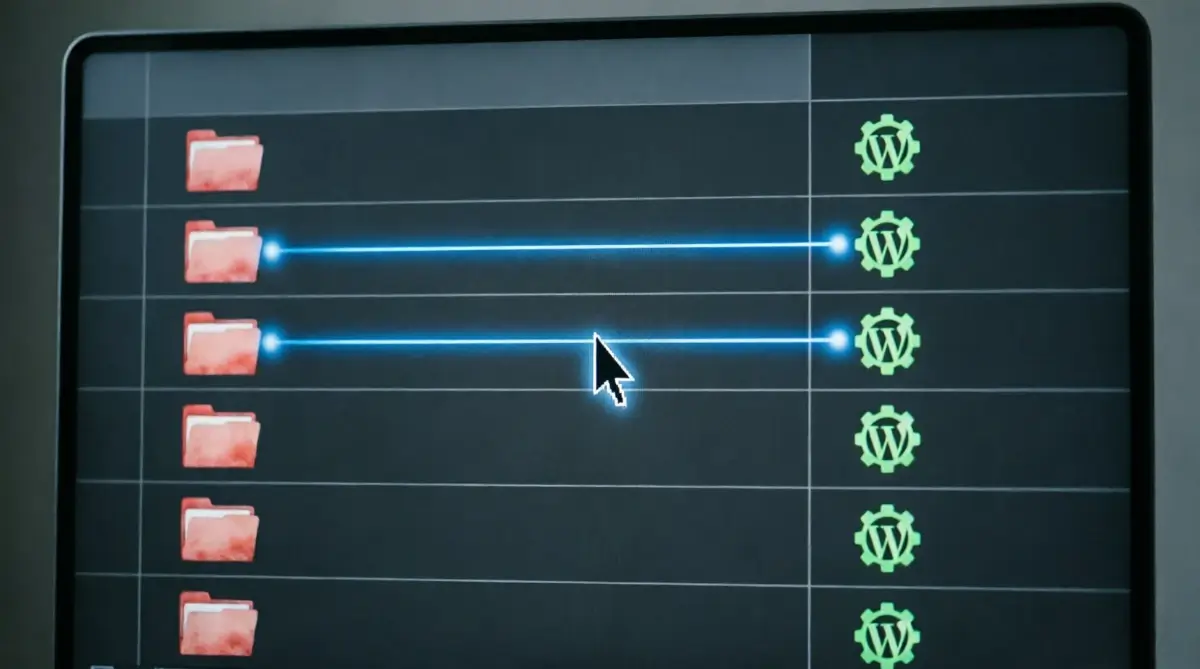
The moment I decided to move my blog from Blogger to a self‑hosted WordPress site, I knew I was not just changing software. I was transferring every article I had ever written, every search ranking that had been earned, and every link that pointed to my pages.
A single wrong step could turn months of work into a collection of 404 errors that search engines and visitors cannot find. When my site made this move, it had 82 articles and a handful of additional pages 91 pieces of content in total. The process I followed preserved every piece of content, every search signal, and every backlink. This guide is the exact, step‑by‑step method I used. For anyone considering the move, this is the path that kept every ranking intact.
I did not make the decision to migrate casually. The blog had been growing. Articles were ranking for specific queries. A small but real audience had begun to find the content. Moving platforms meant risking all of that. The old URLs had a structure that Blogger imposed date folders and .html extensions and I knew that WordPress would use a different structure entirely. Every old address would break unless I built a map from every old URL to its new equivalent. The weight of that task sat in the back of my mind for weeks before I finally committed to the move.
The decision came down to a single realization: the longer I waited, the harder the migration would become. Every new article I published added another URL to the redirect list. Every backlink that might be earned in the future would point to an address that would eventually need to change. The cost of delay was not just time it was the accumulation of content that would one day need to be moved, multiplied by every search listing that had to be preserved. I decided to act before the library grew beyond what I could reasonably manage in a single focused effort.
The Point of No Return
The blog had 82 articles and several static pages when I began the migration. The import itself would take only hours. But the full process extracting the old URLs, building a redirect map, testing every redirect, fixing the inevitable formatting issues, updating internal links, and verifying that search engines could find the new pages would consume three full days of uninterrupted work.
I cleared my calendar and treated the migration as a temporary full‑time project. There was no going back once the export began, because the old Blogger site would remain online only as long as the domain stayed pointed to it. The moment the DNS settings changed, the old URLs would stop working. The redirect map had to be ready before that moment arrived.
I had no special technical background when I started. I had never migrated a website before. Every step in this guide is something I learned during the process itself. That perspective of someone doing this for the first time is what I bring to the instructions that follow. If I could do it without prior experience, anyone with basic computer skills and the willingness to work carefully can do it.
What This Guide Covers
The steps I will walk through are the exact ones I followed. They include exporting content from Blogger using Google Takeout, identifying the only file needed from a cluttered export folder, importing that file into WordPress with the native importer after a popular plugin failed, building a manual CSV redirect map to preserve every search ranking, cleaning up the imported content so it looks and functions like a native WordPress site, and monitoring the site after migration to catch any issues that slipped through. Each step is described with the specific actions I took, the mistakes I made, and the lessons I learned. No steps are skipped, and no assumptions are made about prior knowledge.
Prepare for the Move Before Touching a Single File
Before I initiated the export from Blogger, I prepared the new WordPress site and my workspace. I ensured the WordPress installation was a blank slate no sample posts, no default pages that could conflict with imported content. I verified that the domain name would remain exactly the same after migration, because changing both the platform and the domain simultaneously introduces unnecessary complexity.
I installed the free Redirection plugin on the new site even though it would remain empty until the redirect map was ready. Having it in place meant I could move directly from import to redirect construction without pausing to install tools. I installed a search‑and‑replace plugin for the internal link updates that would be needed later, and a table‑of‑contents plugin for the navigation structure I wanted to add.
I recorded every current URL from the Blogger site. I did this by downloading the blog’s backup file through Google Takeout, which I describe in the next section. Once I had the list, I stored it in a simple text file. That list would become the source column of my redirect CSV. I prepared a spreadsheet with two columns: old URL and new URL. It was empty at this stage, but having it ready meant I could fill it row by row as I verified each imported page.
I tested the WordPress permalink structure before importing any content. I went to Settings → Permalinks and selected the “Post name” option, which creates clean URLs like /sample‑post/. I clicked Save Changes to flush the rewrite rules. This step ensured that when the importer created posts, their URLs would match the structure I intended for the redirect map. A mismatch between the imported permalink structure and the redirect map would have caused every redirect to fail. I verified that the WordPress site had SSL enabled and was serving all pages over HTTPS. My old Blogger site had used HTTPS, so consistency was important for both user trust and search engine signals.
The domain’s DNS settings required verification I logged into my domain registrar’s control panel and confirmed that the nameservers had been updated to point to the new WordPress host. DNS propagation can take up to 48 hours, so I made this change two days before the planned migration. This gave the internet time to update while I worked on the export and import.
I set the TTL values low on the DNS records to speed up propagation. This small technical detail prevented a scenario where some visitors would see the old site and others would see the new one during the transition.
Before I initiated the Google Takeout export I created a manual backup of the Blogger content using the built‑in Blogger backup feature. This was a secondary safeguard in case the Takeout export failed or was delayed. The Blogger backup is less complete than the Takeout export, but it provides a quick, downloadable XML file that can be used as a fallback. I saved this file alongside the Takeout archive once it arrived. I backed up the new WordPress site, even though it was empty, using the UpdraftPlus plugin.
This created a snapshot of the clean installation that I could restore if the import went wrong and I needed to start over. Redundancy in backups is never wasted; it is the foundation of every other action in the migration. This approach to layered backups is the mindset that underpins a simple weekly routine that starts every maintenance session with a verified backup.
What the Entire Migration Timeline Actually Looked Like
The migration was not a single afternoon task. From the moment I initiated the Google Takeout export to the moment I tested the final redirect, three full days passed. Day one was consumed by the export wait, the file extraction, and the import itself. Day two was the redirect map and initial testing. Day three was the cleanup: duplicate images, internal link updates, and formatting fixes. I blocked out my calendar and treated the migration as a temporary full‑time project. That focus allowed me to catch problems as they appeared rather than discovering them weeks later when they had already affected search rankings.
For a blog with 50 to 100 articles, I would recommend planning for three to four days of focused work. For a larger blog, the timeline scales with the number of articles, primarily because of the redirect map. Every article requires a manually verified redirect entry. There is no reliable way to automate this step, as I learned when the automated plugin failed. The time invested in manual verification is the insurance policy that protects every search ranking the site has earned.
I learned to build in buffer time unexpected issues will arise. The Google Takeout email may take longer than 14 hours. The import may stall on a particular image. The redirect plugin may reject the CSV due to a formatting error. None of these are catastrophic if there is time to address them. They become stressful only when the migration is squeezed into a single day with no room for error. The timeline I recommend assumes that something will go wrong and builds in the space to handle it calmly.
Export Your Content From Blogger Using the Only Method That Works
Blogger does not offer a direct “Export to WordPress” button. Instead, a complete backup of all Blogger data must be requested through Google Takeout, a service that collects all Google‑related data associated with an account. I logged into the Blogger dashboard, navigated to Settings, scrolled to Backup content, and clicked the link that took me to Google Takeout. On the Google Takeout page, every Google service was selected by default Gmail, Drive, YouTube, Photos, and dozens of others. I deselected everything except Blogger. Leaving other services selected would have bloated the export file and delayed its creation by hours or even days.
I clicked Next step and then Create export. Google displayed a message that the archive was being prepared and would be sent to my Gmail address when ready. There was no progress bar, no estimated completion time. The only action possible at that point was to wait. I started the export first thing in the morning, knowing that I would likely not see the email until the evening or the next day. This is not a step that can be rushed. Google processes Takeout requests in the background, and no amount of refreshing the page speeds it up. Planning around this wait is essential to a smooth migration timeline.
What Happened During the 14‑Hour Wait
The email from Google Takeout arrived approximately 14 hours after I submitted the request. The subject line indicated that my Blogger archive was ready to download. The email contained a link to a compressed .zip file. I downloaded the file immediately and saved a copy to an external drive before extracting it. The download size was modest a few dozen megabytes for 91 articles with images. Once the file was on my computer, I extracted it and opened the resulting folder.
The wait was longer than I expected, but I used it productively. I prepared the WordPress site by installing all necessary plugins. I set up the Redirection plugin and created the empty group where the redirects would be imported. I read through the WordPress importer documentation to familiarize myself with the steps. I used the time to manually record the titles and slugs of every Blogger post, which would help me verify the import later. The waiting period is not wasted if it is used for preparation.
During the wait, I checked my Gmail spam folder periodically to ensure the email had not been filtered. I confirmed that the Google account associated with the Blogger blog was the same one I used to log into Google Takeout. A mismatch between accounts is a common reason for delays the export is sent to the Google account that owns the Blogger blog, not necessarily the account that requested the Takeout. I avoided this by using the exact account throughout. If the email does not arrive within 24 hours, I would recommend checking the Google Takeout page again. It sometimes shows the status of the export, and there may be an option to cancel and resubmit the request.
Locating the Only File You Need in the Cluttered Export Folder
The extracted folder contained a large number of files, most of which I never touched. The structure was: a main folder containing a subfolder named Blogger, inside which was another folder named after the old Blogger domain. That final folder contained several items: a followers directory that was empty, a settings.csv spreadsheet of Blogger configuration, old theme files including theme‑classic.html and theme‑layouts.xml, and the file I needed: feed.atom.
The feed.atom file contains every post, every page, and every comment in a structured XML format that WordPress can read. I did not modify it. I did not open it in Excel, which can corrupt XML formatting by adding hidden characters or changing encoding. I simply noted its location and kept it ready. This single file was the bridge between the old platform and the new one. All 91 pieces of content articles, pages, and their associated metadata were stored inside it. Learning to find this file amidst the clutter of the Takeout export was the first small skill the migration taught me.
Before I imported the feed.atom file, I performed a quick integrity check. I opened the file in a browser that can render XML and confirmed that the structure was valid no unclosed tags, no obvious corruption. I checked the file size against the expected size based on the number of articles. A file that is significantly smaller than expected might indicate missing content. My file was roughly the size I anticipated, so I proceeded with confidence. This check took only a minute and provided peace of mind.
When I extracted the .zip file from Google Takeout, I placed the contents in a dedicated folder on my desktop, clearly labeled with the date of the export. This organization was simple but important. Several days later, when I needed to reference the original export to verify a specific post, I could find it immediately. I kept the original .zip file untouched as a master backup. Extracting creates a working copy; the original archive remains a safety net.
Why Other Export Methods Fall Short
Blogger can export content through its own settings panel, without going through Google Takeout. That method produces a smaller, simpler file. However, I did not use it because it is less complete. The direct Blogger export sometimes omits pages, comments, or image attachments, depending on the blog’s configuration.
The Google Takeout method, by contrast, captures everything associated with the Blogger account in one comprehensive archive. The feed.atom file it produces is the most complete export available. For a migration where preserving every piece of content is critical, the Takeout method is the only reliable path. The extra waiting time is the price of completeness.
For a blog with hundreds or thousands of articles, the feed.atom file can become very large, potentially exceeding the size that Google Takeout can process in a single request. In my case, with 91 articles, the file was small and the export completed without issues. For a larger blog, the Takeout process may take longer, and there is a risk that the request could time out or produce an incomplete file. If the export fails, the request can be cancelled and resubmitted.
Google Takeout offers the option to split the archive into multiple parts if the size exceeds a threshold. A practical alternative for very large blogs is to export the content in batches by date range. Blogger allows filtering posts by date, and multiple Takeout requests can be submitted for different time periods. This approach breaks the migration into manageable pieces and reduces the risk of a single massive file failing.
Import the Content Using the Native WordPress Importer
Before using the native importer, I tested a popular “Blogger to WordPress” redirect plugin. The plugin promised to handle both the content import and the 301 redirects in one step. It did not work. The plugin required a specific custom field blogger permalink to be present in each imported post. That field is only created when a particular import method is used. Since my import had not created that field, the plugin found nothing to work with and generated zero redirects. I spent an hour troubleshooting before accepting that the plugin was not going to function in my situation.
The lesson was clear: automated tools that promise to import and redirect in one click often depend on conditions that an export may not satisfy. A manual CSV redirect map, while more work, is fully reliable. I abandoned the plugin and turned to the native WordPress importer, which handles the feed.atom format without any dependencies on custom fields or specific import sequences. The native importer is built into WordPress and is specifically designed for Blogger imports. It required no additional installation and no configuration.
Step‑by‑Step Through the Native WordPress Importer
The import steps were straightforward. In the WordPress dashboard, I went to Tools → Import. I found Blogger in the list, clicked Install Now to add the importer, and then clicked Run Importer. I clicked Choose File, selected the feed.atom file, and clicked Upload file and import. WordPress processed the file in a few minutes for 91 items. I was prompted to assign an author, and I chose my WordPress user account so that all imported posts would be attributed to me.
I did not close the browser tab while the import ran the importer brought over all posts, pages, and their images. Media files took additional time to transfer as WordPress fetched them from Blogger’s servers, but the process completed without errors all 91 items appeared in the WordPress dashboard.
The importer successfully transferred post content, page content, publication dates, and author attribution. What it did not do was set featured images correctly it set the first image in each post as the featured image, which later created duplication problems with the theme. It did not update internal links, which still pointed to the old Blogger URLs. Both issues would be addressed in the cleanup phase.
The native WordPress importer is maintained by the WordPress core team and is regularly updated. It has been used by thousands of Blogger migrants and is known to be reliable for the feed.atom format. By using it, I avoided adding another plugin to the site that would later need updates and could become a security risk. Minimalism in plugins is a principle I carry into all site management decisions.
Verifying the Import Before Moving to the Next Step
Immediately after the import finished, I spent an hour spot‑checking. I opened the Posts list and confirmed the count matched the old site. I opened Pages and verified all custom pages were present. I browsed several articles on the live site, checking whether images loaded and whether formatting was intact. I looked for any strange characters or missing paragraphs. The import was largely clean, but I noted every issue I found: a few missing line breaks, one page that had lost its formatting, and the duplicate featured image problem that affected nearly every post.
I made a list of every problem and resolved them later. This verification step was tedious, but it ensured no content was silently corrupted during the transfer.
The importer did not handle Blogger’s “Read More” jump breaks, which had to be manually re‑inserted into each article that used them. These small, cumulative tasks are invisible in a summary but constitute the real work of a migration. They are the reason I emphasize treating the migration as a multi‑day project rather than a quick task. The principle of checking every piece of content before proceeding is the discipline described in a monthly audit practice that inspects every corner of a site for accumulated issues.
I opened every article in the WordPress editor, even if only for a few seconds, to confirm the content was intact. I paid special attention to posts that contained special characters, such as non‑English alphabets used in language‑learning examples. The import preserved these characters correctly because the feed.atom file used UTF‑8 encoding, and WordPress natively supports UTF‑8. The publication dates matched the original Blogger dates. The importer preserved the dates accurately, which is important because changing the publication date of an old article can affect its perceived freshness and ranking.
Some images had not been imported. A handful of posts contained images hosted on external domains, and the importer could not fetch them because of cross‑origin restrictions. I had to manually download those images from the old Blogger media library and re‑upload them to the WordPress media library. This was a small but unexpected task that highlighted the importance of the verification step. If I had assumed the import was perfect, those articles would have displayed broken image links.
The native WordPress importer fetches images from Blogger’s servers during the import. If Blogger’s servers are slow or temporarily unavailable, some images may not transfer. I experienced a few timeouts where images appeared as broken links after the import. I resolved this by re‑running the import for those specific posts. The importer is smart enough to skip content that has already been imported, but it will retry failed media transfers.
The SEO‑Preserving Step That Separates a Successful Migration From a Disaster
After the import, the old Blogger URLs which used a date‑based folder structure with .html extensions no longer existed. WordPress uses a different permalink structure, typically clean slugs with trailing slashes. Unless search engines are told where the content has moved, every old URL will return a 404 error, and any backlinks or indexed pages will be lost. My site had a small number of indexed pages and a few external backlinks. I was not willing to lose them.
The redirect map was the single most important technical task of the entire migration. Without it, the import would have been an exercise in content transfer that destroyed the site’s search presence. With it, Google indexed 70 pages in a single update shortly after the move. The causal relationship between the clean redirect map and the indexing jump is documented in the site’s Search Console data. Content migration and SEO preservation are two separate tasks. The import handles the content. The redirect map handles the rankings.
Building the Manual CSV Redirect Map, Line by Line
I used a manual CSV redirect map a simple two‑column file listing every old URL and its corresponding new WordPress URL. Each old Blogger URL followed a predictable pattern: /YYYY/MM/post‑slug.html. Each new WordPress URL followed the clean permalink structure: /post‑slug/. However, during the import, WordPress had modified some slugs shortening long ones and dropping certain words. This meant I could not rely on a regex pattern that assumed identical slugs. I had to verify each pair manually.
I opened the old site in one browser window and the new site in another. For each of the 91 pages, I confirmed the exact old URL from the Blogger post list and the exact new URL from the WordPress post list. I recorded each pair in a spreadsheet: old URL in the first column, new URL in the second. I included every post, every page, and even old tag archive pages that might have been indexed. The CSV was saved as a plain text file with the header source,target and imported into the free Redirection plugin. This process is covered in full detail in a dedicated guide to building a complete redirect map that preserves every existing backlink and search rankingm
The CSV file had to follow strict formatting rules. The first line was exactly source,target with no spaces. Both columns contained only the relative path of the URL, starting with a forward slash. I did not include the domain name. Every target ended with a trailing slash to match the WordPress permalink structure. I saved the file as UTF‑8 without BOM encoding, using a plain text editor.
Spreadsheet applications like Excel can change encoding or add hidden characters, so I avoided them. The delimiter was a comma. For my 91 URLs, the CSV had exactly 91 data rows plus the header. The import into the Redirection plugin took only seconds. I handled percent‑encoded characters. Some old URLs contained spaces that Blogger had encoded as %20. I kept these as %20 in the source field and did not decode them. The Redirection plugin handles percent‑encoded URLs correctly, but only if they are entered exactly as they appear in the browser address bar.
Handling Edge Cases: Mobile URLs, Feeds, and Archives
Not all old URLs followed the standard post format. Blogger creates duplicate mobile versions with a query parameter ?m=1 appended to every post URL. I had to redirect these to the clean new address. A single regex rule in the Redirection plugin handled them: I set the source to /(.*)\?m=1, the target to /$1/, and checked the Regex option. This stripped the parameter and sent the visitor to the correct page. I tested this rule on several example URLs using the Redirection plugin’s regex tester. I entered an old URL like /YYYY/MM/post‑slug.html?m=1 and confirmed that the plugin preview showed the target as /post‑slug/. This testing caught an initial mistake: I had originally forgotten the trailing slash in the target, which caused an extra redirect hop. Adding the slash fixed it.
Old feed URLs like /feeds/posts/default were redirected to the new WordPress feed at /feed/. Old tag and category archive pages were mapped to the corresponding WordPress archive pages where possible, or to the main blog page as a fallback. Every unique URL pattern had to be accounted for; missing even one could result in a 404 for a previously indexed page.
Choosing 301 Redirects and Testing Every Single One
Every redirect was set to 301 Moved Permanently, which tells search engines the move is permanent and transfers ranking signals. I did not use 302 temporary redirects, as those do not pass full SEO value. The 301 redirect does more than just send visitors to the right page. It tells search engines that the old URL has permanently moved and that all ranking signals including backlinks, page authority, and relevance scores should be transferred to the new URL.
This process is not instantaneous. Search engines must first re‑crawl the old URL, see the 301, and then assign the signals to the new URL. The time this takes varies from days to weeks. During this period, the old URL may temporarily drop in rankings, but the new URL will rise as the signals transfer.
After importing the CSV into the Redirection plugin, I tested 15 random old URLs in a private browser window. Each one redirected instantly to the correct new page. The browser address bar updated to show the new URL, confirming the redirect was working as intended. I found one error a mistyped slug in the CSV and corrected it immediately. The testing phase took about an hour, but it was the final safeguard against broken links reaching real visitors.
For 91 redirects, manual testing in a browser was sufficient. But I also used the command‑line tool curl to verify redirects in bulk. The command curl -I -L https://www.yoursite.com/old‑path fetches only the headers and follows the redirect chain, showing each HTTP status code. The final line should show 200 OK. I wrote a simple script that looped through a text file of old URLs and reported any that did not end in a 200 status. This bulk test confirmed that all 91 redirects were working correctly and that no redirect chains or loops had been accidentally introduced.
The Post‑Migration Monitoring That Caught Stray URLs
Even with a careful CSV, a few old tag archive pages slipped through and began generating 404 errors in the weeks after the migration. The Redirection plugin’s 404 log caught them. I checked the log daily for the first week and added redirects for any legitimate old URLs that appeared. Within ten days, the stray 404s stopped. This monitoring is a small but critical part of the post‑migration process it is the kind of regular attention that keeps a simple weekly SEO routine catching issues before they spread.
Communicating the Change to Google
After all redirects were active and tested, I submitted the new WordPress sitemap in Google Search Console. I used the URL Inspection tool on several old URLs to confirm that Google saw the 301 redirects. I monitored the Index Coverage report for new errors over the following weeks. The old URLs began appearing under “Page with redirect,” which is expected.
Over time, Google would index the new URLs and phase out the old ones. This final step closed the loop and confirmed that the migration was complete from a search engine perspective the discipline of post‑change verification is essential when setting up Google Search Console with accurate data from the first day of a new site.
The sitemap submission was not a one‑time action. After submitting the new sitemap, I monitored the Index Coverage report daily for the first week. I watched as the number of indexed pages climbed from 14 to 70 in a single update. This jump was not accidental. It was the result of the clean redirect map, the fast page speed, and the well‑formed sitemap. Google was able to crawl the site efficiently and found no errors blocking indexation. The indexed pages included not only the imported articles but also new articles I had published after the migration. This rapid indexation was a strong signal that the migration had been executed correctly.
I used the URL Inspection tool to test individual old URLs. For each one, the tool reported that the page had moved permanently to the new URL, with a 301 redirect. This confirmed that Google was interpreting the redirects as intended. The “Page with redirect” status in the Index Coverage report was expected; over time, Google would phase out the old URLs and replace them with the new ones.
This process is not instantaneous, but the direction was positive. The data gave me confidence that the migration had not harmed the site’s search presence. This experience highlights the importance of recovering search traffic after a platform migration by monitoring every signal closely.
The new WordPress sitemap, submitted immediately after the redirects were in place, gave Google a complete list of the new URLs. This allowed Google to crawl the new pages directly, rather than discovering them only through the redirects. The combination of a clean sitemap and working redirects is the most powerful way to signal a site migration to search engines. The sitemap says “here are the new pages.” The redirects say “here is where the old pages went.” Together, they create a complete picture that helps Google process the migration quickly and accurately.
The jump from 14 to 70 indexed pages was the most concrete evidence that the migration had succeeded. It meant that the technical foundation I had built the redirects, the sitemap, the page speed was working. The content I had imported was considered valuable enough to be included in Google’s index. The jump did not immediately translate into traffic, but it set the stage for future growth with 70 pages eligible to appear in search results, the potential audience was significantly larger than before the migration.
Fixing Duplicate Featured Images, Internal Links, and Classic Blocks
The import was not the end of the migration. The imported content had several issues that required manual cleanup over the following two days. The most visible problem was duplicate featured images. The theme displayed the featured image at the top of each post, but the imported content also contained the same image as the first element.
This created a visual duplication on every article the same picture appearing twice, once above the title and once at the top of the content. I resolved this in two ways. For new posts going forward, I began choosing a different cover image than the one used inside the content. For existing posts where the image needed to serve both purposes, I used a lightweight plugin to hide the featured image on the single post view. This solved the immediate problem without requiring a manual edit of 82 articles.
Internal links were another issue many articles linked to other articles on the site but using the old Blogger addresses. When a visitor clicked such a link, they went through a redirect, which added a slight delay. I used a search‑and‑replace plugin to scan the entire database for the old domain and replace it with the new one. The plugin allowed a dry‑run first, showing exactly which rows would be changed. I also replaced other old URL patterns where they appeared in content. After running the replacement, I flushed the permalink settings and spot‑checked several posts to confirm the links pointed directly to the correct pages.
Some links used the Blogger‑specific structure with date folders, while others used relative paths. The search‑and‑replace plugin supported regex to catch all variations. I manually checked a sample of 20 posts, clicking through internal links to ensure they led to the correct new URLs without redirect chains. This manual verification caught a few links that the plugin missed because they were embedded in custom HTML blocks.
All imported content was placed inside a single “Classic” block in the WordPress editor. This made future editing difficult, as the entire article appeared as one large, unformatted block. I ran a bulk conversion using a free “Convert to Blocks” plugin, which transformed the old HTML into proper Paragraph, Heading, and Image blocks. The conversion preserved all formatting and made each article editable in the modern block editor. This was not strictly necessary for SEO, but it made ongoing maintenance dramatically easier
A site that is easy to edit is a site that gets updated, and updated content tends to perform better in search over time. The conversion was not always perfect. Some complex formatting, such as nested lists or custom HTML tables, did not convert cleanly. I had to manually review each converted article and fix these edge cases. This manual review added several hours to the cleanup but ensured that every article was fully editable in the block editor.
A consistent table of contents was added to every article using a free block plugin. The plugin automatically pulled headings from the content and generated a navigable list at the top of each page. This improved reader navigation and gave the site a professional, cohesive feel. The plugin automatically updated the table of contents whenever headings were edited, so maintenance was zero. Readers arriving from search could see the structure at a glance and jump directly to the section that answered their question. I observed that average session duration increased on articles where the table of contents was prominent. When a reader can quickly find the specific information they need, they are more likely to stay on the page.
All imported images were run through an optimization plugin that compressed them to WebP format and resized them to a maximum width of 1200 pixels, reducing page weight and improving load times. Explicit width and height attributes were added to prevent layout shifts. These changes reduced page weight by over 60% on some articles and contributed to the high PageSpeed scores achieved later. The image optimization was not a one‑time task; it is now included in my weekly routine to catch any new images that may have been uploaded without compression the principle of reducing file sizes while maintaining quality is the practice described in a guide to optimizing images without losing visual fidelity to keep page speed scores high.
What the Migration Unlocked Beyond SEO
The migration placed my site on a platform that allowed complete control over page speed, resulting in scores of 97 to 100 on both mobile and desktop in PageSpeed Insights. It allowed the installation of lightweight plugins for SEO, caching, and performance that Blogger could never support. It gave the site a structured, professional appearance with proper navigation, a sidebar, and custom pages.
It laid the foundation for future work that was simply not possible on the old platform. The three‑day investment in migration was a one‑time cost that opened up a permanent, scalable path forward. The technical foundation established during the migration was the one that later enabled a well‑executed technical setup to support growth beyond the first few dozen pages.
The hardest lesson from the entire process was this: the manual CSV redirect map was the single decision that made the migration successful. The automated plugin failed. The regex‑based import inside the Redirection plugin could not account for the slug changes WordPress introduced during the import. The manual CSV, verified line by line, was the only method that guaranteed every old URL pointed to the correct new page. That manual verification, however tedious, was the insurance policy that protected every ranking and every backlink the site had earned. For anyone planning a similar migration, this is the step that cannot be outsourced to automation.
It is the step that separates a successful migration from one that requires months of recovery work the entire process, from the discipline to sit down for three days to the patience of line‑by‑line verification, is an example of the self‑discipline architecture that keeps a project moving forward even when the work is tedious.
The Complete Import and Migration Checklist
For anyone preparing to follow this process, here is the condensed checklist of every step I took:
1. Prepare the new WordPress site: install WordPress, configure permalinks to “Post name,” enable SSL, install the Redirection plugin, a search‑and‑replace plugin, and a table‑of‑contents plugin.
2. Verify the domain DNS points to the new host and set low TTL values.
3. Create a backup of the new WordPress site using UpdraftPlus.
4. Initiate the Google Takeout export from Blogger, ensuring only Blogger data is selected.
5. While waiting for the Takeout email, record all old Blogger URLs and prepare a blank CSV file with the header source,target.
6. When the email arrives, download and extract the archive. Locate the feed.atom file inside the Blogger subfolder.
7. In WordPress, go to Tools → Import, select Blogger, and upload the feed.atom file.
8. After import, verify the post count matches, check pages, and spot‑check content for formatting issues.
9. Build the redirect map: for each old URL, find the new WordPress URL and record it in the CSV. Handle mobile URLs with a regex rule.
10. Import the CSV into the Redirection plugin and test 15 random old URLs in a private browser window. Use curl to bulk test all redirects and confirm every one returns a 200 status.
11. Use a search‑and‑replace plugin to update internal links from old Blogger URLs to new WordPress URLs.
12. Resolve duplicate featured images by either changing the cover image or using a plugin to hide the featured image on single posts.
13. Convert Classic blocks to modern blocks using the Convert to Blocks plugin.
14. Add a table of contents to each article.
15. Optimize all imported images: compress to WebP, resize to 1200px, and add dimensions.
16. Submit the new WordPress sitemap in Google Search Console and monitor the Index Coverage report daily for the first week.
17. Check the Redirection plugin’s 404 log daily and add redirects for any stray old URLs.
This checklist turns a complex, multi‑day process into a sequence of clear, actionable steps. Following it in order, without skipping any item, is the difference between a migration that preserves everything and one that leaves broken links scattered across the internet.
The migration process I have described is the one I followed. It worked for 91 articles on a standard Blogger configuration. For a larger or more complex blog, the exact principles apply, but the time required will scale. The key is to treat the migration as a project with a clear sequence: export, import, redirect, clean up, monitor. Each phase depends on the previous one. Rushing or skipping steps creates problems that are harder to fix later. The time invested in careful execution is an investment in the site’s future. When the migration is complete and the redirect map is tested, the site will be on a platform that can grow with it for years.
The continuity of search rankings, the preservation of every backlink, and the seamless transition for readers these are the outcomes of a migration done carefully. They are not visible to the audience, but they are the reason the site continues to grow after the move.
Disclaimer:
The process described in this case study reflects the specific experience of my site, dailingua.com, during its migration from Blogger to WordPress. The steps I followed worked for 91 articles on a single domain with a standard Blogger configuration. Blogs with custom templates, extensive JavaScript, non‑standard permalinks, or large media libraries may encounter different challenges. No two migrations are identical. The tools and methods I used are freely available, but their performance depends on the specific hosting environment, server resources, and internet conditions at the time of the migration. I do not endorse any particular plugin, hosting provider, or third‑party service mentioned in this guide.