I launched my blog on a wave of enthusiasm I had chosen the name. I had written the first post. I had previewed it on my laptop screen and felt the thrill of seeing my words formatted as a real blog. And then, with the impatience of someone who had waited far too long to start, I hit publish and called it done.
A week later I discovered how much I had missed.
It was not the content that was wrong. The article itself was fine not remarkable, but honest, and I had written it from genuine experience. The problem was everything around the content. The invisible layer of settings that determines whether a blog loads quickly or crawls, whether it appears in search results or stays hidden, whether the person who lands on the page stays to read or closes the tab before the first image appears. I had ignored every one of those settings in my rush to publish. And the consequences were not abstract. They were measurable, specific, and quietly devastating for a new blog with no audience to lose.
The first sign was the page speed. I loaded my homepage on a mobile device and watched it struggle. Images that should have appeared instantly were materializing in slow motion. Text shifted around as elements loaded out of order. The experience was not just slow it was disorienting. I pulled up the PageSpeed Insights tool and ran a test. The mobile performance score was below 70. The largest contentful paint was 8.9 seconds. The first contentful paint was 6.5 seconds. A reader clicking on my article would stare at a blank screen for over six seconds before the first piece of text appeared. In a world where unlimited alternatives are a single search away, six seconds might as well be an hour.
The second sign was even worse. For ten days after I launched Dailingua, the blog had been invisible to search engines. There is a toggle in the Blogger settings a single, small toggle that controls whether search engines are allowed to index your site. It was off. I had never checked it. For ten days, I had been publishing into a void, and the void was not a metaphor. It was a configuration error.
I want to pause here and describe what that felt like, because I think it is important for anyone who is starting a blog to understand the emotional weight of these mistakes. I had spent hours writing that first post. I had chosen every word with care. I had read it aloud before publishing, tweaking sentences until they felt natural. And for ten days, I checked the blog hopefully, expecting to see some small sign that someone had found it. A comment. A view that was not my own. Anything. The silence was complete. And the entire time, the problem was not the writing. It was a toggle I had never seen.
The experience taught me something I have never forgotten
a blog is not a single thing. It is a layer of content sitting on top of a layer of configuration. If the configuration layer is broken, the content layer might as well not exist. The reader never gets to the words because the technical foundation never delivered them.
I had done the hard work of writing. I had skipped the essential work of making the writing findable.
What follows is the exact sequence of settings I now configure on any Blogger blog before I publish a single post. Not the settings I read about in a tutorial. The settings I learned through those early failures the ones I tested, fixed, and now treat as the non‑negotiable foundation of a professional looking blog. Each setting has a reason. Each one connects to a specific outcome. And the entire sequence, from the first toggle to the final test, fits within thirty minutes.
Dailingua is still a small blog, still growing, still finding its footing. When I first set it up, I had no credentials, no audience, and no proof that anyone would ever read what I wrote. The blog exists because I refused to let the absence of those things stop me from starting that refusal is something I explored in more detail in finding a blog niche when credentials are absent the niche was never a category. It was the gap between what I had lived and what someone else needed to hear.
Step One: The Basic Identity and Privacy Settings
The first group of settings lives under Settings > Basic in the Blogger dashboard. They are simple, but skipping them as I did creates problems that are hard to diagnose later because you do not know they exist.
Blog Title I had already chosen Dailingua as my blog name when I created the account, but I returned to this field to confirm it was exactly right. The title appears at the top of every page, in the browser tab, and in search results. It is the first thing a reader sees before they read a single word. I typed “Dailingua” and left it at that. No tagline. No subtitle. Just the name. A clean title signals that you know what your blog is about, and you are not trying to squeeze extra keywords into a space that should be simple.
There is a practical reason to keep the title short beyond aesthetics. Search engines typically display only the first 50 to 60 characters of a title in search results. If your title is longer than that, it gets cut off mid‑sentence. A short title ensures that what a searcher sees is complete and coherent, not truncated and confusing.
Blog Language. This sounds obvious, but Blogger sometimes defaults to a language based on your account location rather than your writing language. I changed mine to English and verified that every post was assigned the same language. If your blog language does not match the content, search engines may misinterpret your pages, and some built in features like the date format or the comment interface may display incorrectly. It takes seconds to check and can prevent weeks of confusion.
I also want to mention something that is not immediately obvious: the blog language setting affects more than search engines. It also affects the built‑in Blogger widgets. The “Recent Posts” widget, the “Labels” widget, and the archive display all pull their formatting from this language setting. If the language is wrong, these widgets may display dates in a format that feels foreign to your readers, or use translated terms that do not match the language of your content.
Privacy Visible to Search Engines. This is the toggle I missed for ten days. Under Settings > Privacy, there is an option labeled “Visible to search engines.” I discovered it was off when a YouTube creator mentioned it in a passing comment. I checked my own settings, and there it was the reason my blog had been live but unfindable. I turned it on immediately. The moment the toggle flipped, I felt a physical sense of relief. The blog was no longer broadcasting into an empty room. Search engines could now see it, index it, and eventually show it to people who were searching for what I wrote.
This toggle exists, I believe, to give bloggers the option to work on their site privately before making it public. That is a useful feature. But the default should be clearly communicated, and it is not. I have spoken to other new bloggers who made the same mistake some who went months without realizing their blog was invisible. If you take nothing else from this article, take this: before you publish anything, open Settings > Privacy and make sure that toggle is on.
Step Two: Google Analytics The Measurement ID
Before I published my first post, I should have connected Google Analytics. I did not. I connected it later, after I had already published several articles, and I lost the historical data from those early days. That is a mistake I will not make again, and it is one I want to prevent for anyone who is setting up a new blog.
Here is the process I now follow. It takes about ten minutes, and it ensures that every visitor from the very first day is tracked and measured.
Create a Google Analytics Account. I used the same Gmail account that I used for Blogger. This is not required, but it simplifies verification because Google recognizes the shared account and reduces the number of steps needed to prove ownership. If you use a different account, you will need to go through an additional verification process, which is not difficult but adds time.
Set Up a New Property. In Google Analytics, I created a new property for Dailingua. The platform asked for a property name, a reporting time zone, and a currency. I kept it simple: the blog name, my local time zone, and US dollars. The time zone matters because it affects how your reports are organized. If you choose a time zone that does not match where most of your readers are, your daily traffic patterns will look shifted in ways that are confusing to interpret.
Copy the Measurement ID. Once the property was created, Google Analytics generated a unique Measurement ID a string of letters and numbers that identifies my specific blog. I copied it to my clipboard.
Paste the Measurement ID into Blogger. In the Blogger dashboard, under Settings, there is a field labeled “Google Analytics Measurement ID.” I pasted the ID into that field and saved it. The connection was immediate.
Test the Connection. I opened my blog in an incognito browser window so the visit would not be filtered out as my own traffic and navigated to a post. Then I went back to Google Analytics and opened the Real‑Time report. A single active user appeared. That user was me, testing the connection, but the signal was clear: the tracking was working. Every real visitor from that moment forward would be captured, measured, and available for analysis.
I want to emphasize something important about the Real‑Time report. It is not just useful for testing. It is also a source of motivation in the early days when your traffic is small. Seeing a single dot appear on the map one person, somewhere in the world, reading your words right now is a powerful reminder that your blog is real and that people are finding it. I have returned to that Real‑Time report many times on days when the writing felt lonely, and seeing even one visitor was enough to keep me going.
Connecting analytics before publishing the first post means that every visitor from day one becomes part of the story you can later read.
I did not understand the analytics at first the numbers were small and hard to interpret. But having the data from the very beginning meant that when I did learn how to read it when I understood what session duration meant, what bounce rate indicated, what geographic distribution told me about my audience I had a complete record to work with. I was not starting from scratch. I was building on a foundation of information that had been accumulating since the first visitor arrived the patient data‑gathering lies at the heart of how lived struggle becomes the expertise readers trust the evidence builds slowly, but it only builds if you set up the tools to capture it from the start.
Step Three: HTTPS The Security Toggle That Signals Trust
One of the most important settings I now configure is HTTPS. It lives under Settings > HTTPS in the Blogger dashboard, and it has two parts.
HTTPS Availability. This toggle controls whether your blog is accessible over a secure, encrypted connection. When I first checked this setting on Dailingua, it showed “Available” because my custom domain had successfully pointed to Google’s servers. I turned the toggle on. The padlock icon appeared in the browser bar. That small symbol communicates to every visitor that the connection is secure, that their data is protected, and that the site is professionally maintained.
The padlock icon is one of those small signals that readers process unconsciously. They may not be able to articulate why a site without HTTPS looks less trustworthy, but they feel it. Browsers have begun actively warning users when they visit non‑HTTPS sites, displaying messages like “Not Secure” in the address bar. For a new blog trying to earn trust, that warning is a barrier. Removing it is not optional it is essential.
HTTPS Redirect. The second toggle is even more important. It ensures that anyone who visits the HTTP version of your blog is automatically redirected to the secure HTTPS version. Without this redirect, a visitor could land on the unsecured version and never know the secure version exists. With the redirect turned on, every visit is automatically upgraded to HTTPS.
Both toggles took me less than thirty seconds to enable. The impact on reader trust is difficult to measure but impossible to ignore. A blog without HTTPS looks incomplete. A blog with HTTPS looks legitimate. For a new blog trying to earn its first readers, that small difference matters.
I should note that if you are using a free Blogspot subdomain rather than a custom domain, Blogger handles HTTPS automatically and you may not see these toggles. The settings I am describing apply to blogs that have connected a custom domain. If you have not purchased a custom domain yet, this step can be skipped but it is one of the first things you will configure when you do upgrade the path starting free and upgrading and starting a blog with no hosting budget and moving when ready.
There is one more thing worth mentioning about HTTPS. When you first connect a custom domain to Blogger and turn on these toggles, the HTTPS availability may not appear immediately. It can take up to several hours for Google’s servers to provision the SSL certificate for your domain. During that time, the status may show “Pending” or “Unavailable.” This is normal. It is not a problem to fix. It is simply a waiting period. I remember refreshing the settings page anxiously, convinced I had done something wrong, only to check back later and find that the status had changed to “Available” on its own.
Step Four: Page Speed The Post Limit and Image Settings
This is the section that transformed Dailingua from a slow, frustrating blog into something that loaded quickly enough to keep a reader’s attention. It covers three settings, all located under Settings > Posts in the Blogger dashboard.
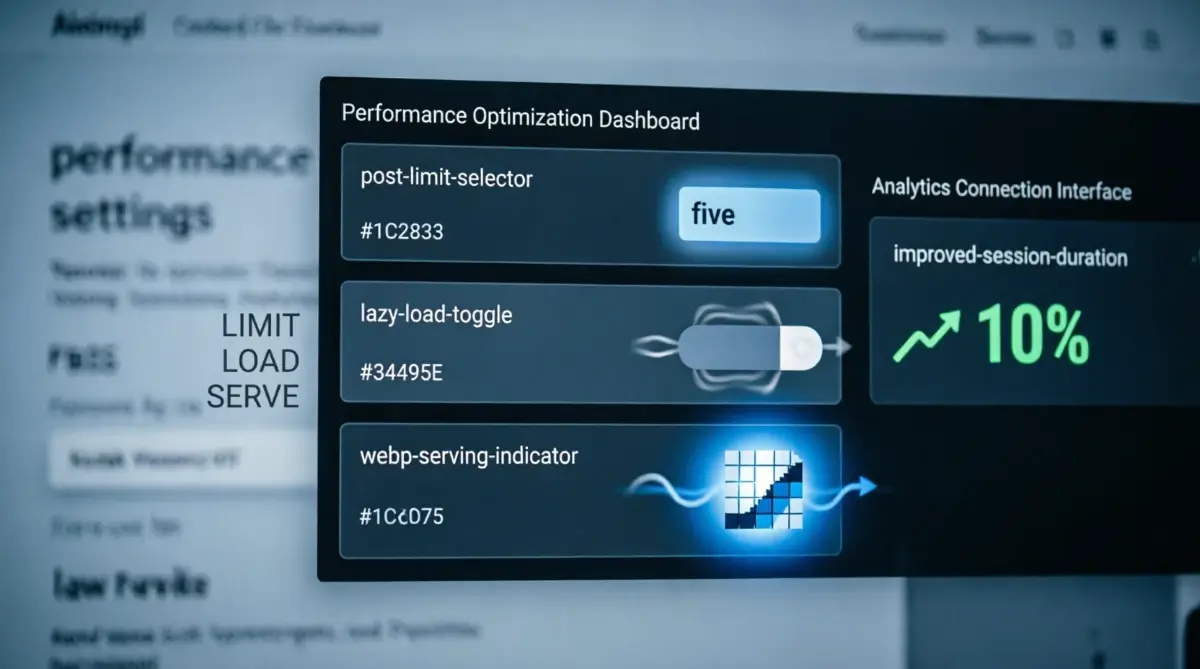
Maximum Posts Shown on Main Page. When I first set up Dailingua, I set this to 30. I wanted readers to see as much of my work as possible. The result was a homepage that loaded like a tank. I reduced it to 5, and the improvement was immediate. The page loaded faster. The design looked cleaner. The reader was not overwhelmed with a wall of content but offered a manageable selection of recent work.
Why five? It is enough to give a visitor a sense of what the blog covers without demanding a long load time. It also keeps the page weight low, which is one of the factors that search engines consider when ranking pages. A fast homepage is not just a courtesy to readers; it is a signal to search engines that the site is well‑configured and worth showing.
I want to explain something that took me time to understand: the number of posts on the homepage affects more than just the homepage. When your homepage loads slowly, search engines may reduce how often they crawl your site. They may index fewer of your pages. They may rank your content lower because the overall site performance is poor. A single setting the number of posts on the main page has a ripple effect that touches every article you publish.
Lazy Load Images. This setting tells Blogger to load images only as the reader scrolls down to them, rather than loading every image on the page at once. Before I turned this on, a reader visiting my homepage was downloading every image from every post, even if they never scrolled past the first article. After I turned it on, images loaded on demand. The page felt faster. The data usage was lower. The experience was smoother.
The difference lazy loading makes is especially noticeable on mobile devices, where data connections are often slower and more expensive. A reader on a limited data plan who visits your blog should not be forced to download images they will never see. Lazy loading respects the reader’s data and time, and that respect translates into trust.
WebP Image Serving. WebP is an image format that produces smaller file sizes than JPEG or PNG without losing quality. I had already been converting my images to WebP before uploading them, but this setting ensures that Blogger serves them in that format automatically. When I turned it on, I noticed a further improvement in page speed the same images, the same quality, but delivered in a format that loaded faster.
Together, these three settings took my mobile PageSpeed score from below 70 to above 85. The largest contentful paint dropped from 8.9 seconds to under 3 seconds. The first contentful paint dropped from 6.5 seconds to under 2 seconds. Those numbers translate directly into reader retention. A page that loads in two seconds keeps a reader. A page that loads in nine seconds loses one.
Page speed is not a vanity metric it is a ranking factor and a retention factor. A fast blog earns readers. A slow blog loses them before the first paragraph.
I tested all of this using the PageSpeed Insights tool. I ran the test before making changes, noted the scores, then ran it again after each adjustment. The improvement was not gradual it was dramatic. And it came entirely from settings that cost nothing and took minutes to configure.
I should add that PageSpeed Insights can be intimidating to use for the first time. The report is full of technical terms First Contentful Paint, Largest Contentful Paint, Total Blocking Time, Cumulative Layout Shift. You do not need to understand every one of them to improve your blog. The tool gives you a score and a set of recommendations. Start with the recommendations that are labeled “Opportunity” or “Diagnostic.” These are the ones that have the biggest impact, and they are often the ones that correspond to the settings I have described here.
Each small adjustment I made reducing the post count, enabling lazy loading, switching to WebP was a deliberate action that compounded into a significantly faster site. That same principle of accumulation through small, repeated acts is the foundation of the architecture of small deliberate actions that compound into a body of published work the settings are not glamorous, but they are the container that holds everything else.
Step Five: The Remaining Settings That Complete the Picture
There are a few additional settings that I now configure before publishing. They are smaller than the ones I have already described, but each one contributes to the overall professionalism and usability of the blog.
Comment Settings. Under Settings > Comments, I set the comment permission to “Anyone with a Google Account.” This opens the blog to feedback from readers without opening it to anonymous spam. I care about what my audience thinks their opinions are the raw material for continuous improvement and making it easy for them to share those opinions is a small but meaningful gesture.
I want to share why I chose this setting rather than “Anyone” or “Only members of this blog.” “Anyone” allows anonymous comments, which can attract spam and make the comment section feel unmoderated. “Only members of this blog” is too restrictive for a new blog with no established community. “Anyone with a Google Account” strikes a balance: it requires a small amount of identity verification, which discourages spam, but it is easy enough that a genuine reader will not be deterred.
Time Zone and Timestamp Format. I left the time zone at its default (GMT‑07:00) Pacific Time because my analytics showed that most of my early readers were from the United States. I did not see a reason to change it. For the timestamp format, I chose Month/Day/Year because it is clear, professional, and easy to scan. The same format applies to comment timestamps, so every interaction on the blog carries a consistent, readable date.
Meta Tags Search Description. Under Settings > Meta Tags, there is a field for a search description. I wrote a short description of Dailingua under 150 characters that explains what the blog is about. I also turned on the toggle labeled “Enable search description” so that this text appears in search results when someone finds the blog. It is a small piece of copy, but it is the first thing a searcher reads after the title. It deserves attention.
Writing a good search description is harder than it looks. You have 150 characters roughly one sentence to tell a stranger why they should click on your blog instead of the nine other results on the page. I wrote and rewrote mine several times before I was satisfied. The version I settled on was simple and direct: it said what the blog is about, who it is for, and what kind of value a reader can expect. No hype. No promises. Just clarity.
Crawlers and Indexing blogger offers options for custom robots.txt and custom robots header tags. I kept these turned off. For a new blog, the default crawling behavior is perfectly adequate, and customizing these settings without deep technical knowledge can cause more harm than good. The same applies to the “Enable custom robots.txt” option I left it off.
I have seen bloggers, in forums and discussion threads, accidentally block their entire site from search engines by misconfiguring the robots.txt file. It is a powerful tool, but it is not one that a new blogger needs. The default settings allow search engines to crawl and index your site. That is what you want. Do not touch these settings unless you have a specific, researched reason to do so.
Title and Enclosure Links. Under Settings > Posts, there is an option to enable link options in the post editor. I kept this on. It allows me to add custom title text and enclosure links to individual posts, which gives me more control over how my content appears when shared.
Use Blogger Draft under Settings > General, there is a toggle for “Use Blogger Draft.” I turned this on. The Blogger draft interface is slightly more modern than the default editor and provides a cleaner writing experience. It is a preference, not a requirement, but it makes the writing process feel closer to a dedicated writing tool.
Each of these settings is small. None of them will transform a blog on its own. But together, they form the final layer of configuration that turns a default Blogger install into a deliberate, professional publication. And that kind of patient, deliberate setup is what sustains a blog long after the initial excitement has worn off the energy behind the art of continuing when stopping feels easier the settings are configured once, but the discipline of showing up must be rebuilt every day.
The Complete Settings Checklist
Here is every setting I now configure before publishing anything on a Blogger blog. It is designed to be completed in a single session, from top to bottom, without backtracking or second‑guessing.
1. Settings > Basic: Confirm the blog title. Set the blog language to match the language you write in.
2. Settings > Privacy: Turn on “Visible to search engines.”
3. Settings > HTTPS: Turn on HTTPS Availability. Turn on HTTPS Redirect. (Custom domain only; may take several hours to provision.)
4. Google Analytics: Create a Google Analytics account with the same Gmail. Set up a new property. Copy the Measurement ID. Paste it into the Blogger “Google Analytics Measurement ID” field. Test in an incognito window.
5. Settings > Posts: Set “Max posts shown on main page” to 5. Turn on Lazy Load Images. Turn on WebP Image Serving.
6. Settings > Comments: Set comment permission to “Anyone with a Google Account.”
7. Settings > Language and Formatting: Choose a timestamp format. Choose a comment timestamp format.
8. Settings > Meta Tags: Write a search description under 150 characters. Turn on “Enable search description.”
9. Settings > Crawlers and Indexing: Leave custom robots options off.
10. Settings > Posts: Keep “Enable link options in post editor” on.
11. Settings > General: Turn on “Use Blogger Draft.”
Total time: approximately 30 minutes.
This checklist is not complicated. It is deliberate. Every item has a reason, and the whole sequence, completed once, produces a blog that is fast, findable, secure, and ready to grow.
I recommend going through this checklist in a single sitting. Do not skip settings with the intention of returning to them later, because later may never come. I learned this the hard way ten days of invisibility, weeks of slow load times and I do not want anyone else to repeat those mistakes. The thirty minutes you spend on this checklist today will save you hours of frustration and months of missed opportunity.
The early silence of a new blog can feel endless, and during that stretch every small technical victory a faster page, a visible search listing, a single visitor on the map matters more than it seems. Those small victories are what keep a blog alive when growth is slow, much like the stubborn spark that stays lit when everything goes dark.
The Lesson I Carry Forward
Dailingua is still a small blog. It is still growing, still learning, still adjusting. But the foundation I eventually built the settings I should have configured on day one is now solid. The blog loads quickly. It appears in search results. It tracks every visitor. It is secure. It is findable. And all of that is the result of thirty minutes of deliberate configuration, not months of technical study.
I am not sharing this because I got it right the first time. I am sharing it because I got it wrong, and the mistakes taught me something worth passing on. The settings you configure before publishing are the silent foundation of every article you will ever write. They do not make the writing better, but they make the writing findable. And a blog that is not found, no matter how well‑written, is a blog that does not serve anyone.
This is the principle that guided me that how one sentence filter that tests any niche before you commit the niche, the platform, the settings they are all secondary to the simple act of starting with intention. But intention without configuration is invisible. The settings are what make intention visible to the world.
And that visibility is built on small, deliberate actions. Each toggle flipped, each ID pasted, each test run in an incognito window is a brick in that foundation. None of them is glamorous. None of them will be noticed by a reader. But together, they make the difference between a blog that is ready to be found and a blog that is still waiting to be seen.
This is what I think about now when I open the Dailingua dashboard. The settings are configured. The foundation is solid. The blog is still small, but it is ready. And that readiness, that confidence that every technical detail has been attended to, is what allows me to focus entirely on the one thing that matters most: writing something worth reading.
How to build evidence when the degree is missing the settings are not separate from the writing. They are the container that holds the writing and makes it available to the people who need it.
I sometimes think about the version of myself who launched Dailingua without checking these settings the version who published into the void, who watched his page crawl under the weight of unoptimized images, who wondered why nobody was finding his words. I do not regret those mistakes, because they taught me everything I have shared here. But I also do not romanticize them. They cost me time, they cost me readers, and they cost me the confidence that comes from knowing your blog is functioning as it should.
If I could sit down next to someone who is about to start a Blogger blog today someone who has chosen their name, written their first post, and is eager to hit publish I would not give them a motivational speech. I would open the dashboard, walk through this checklist, and make sure every toggle was in its right position. Then I would say: now you are ready. Now the blog will work. Now every word you write has a chance to be found.
And when the initial motivation inevitably fades, what remains is the structure that was built before the first post ever went live. That shift from relying on excitement to relying on architecture is what letting go of motivation and building discipline architecture is about the settings are the architecture the writing is the daily practice. Both are necessary, and neither can substitute for the other.